
Open a folder and begin.
Launch MPViewer, choose Open Folder, and select a working folder containing photographs or videos. There is no import dialog and no library to create—the gallery represents the files already inside that folder.
Select a folder from the welcome screen, sidebar, Favorites or Recent folders.
Double-click a thumbnail or press F, Space or Return.
Use ratings, tags and flags to identify the strongest files.
Create delivery copies and presets while leaving the originals untouched.
Your folder remains the source of truth. MPViewer adds a fast viewing and review layer without requiring you to reorganize your archive around the application.
Build a faster 1.4 review loop.
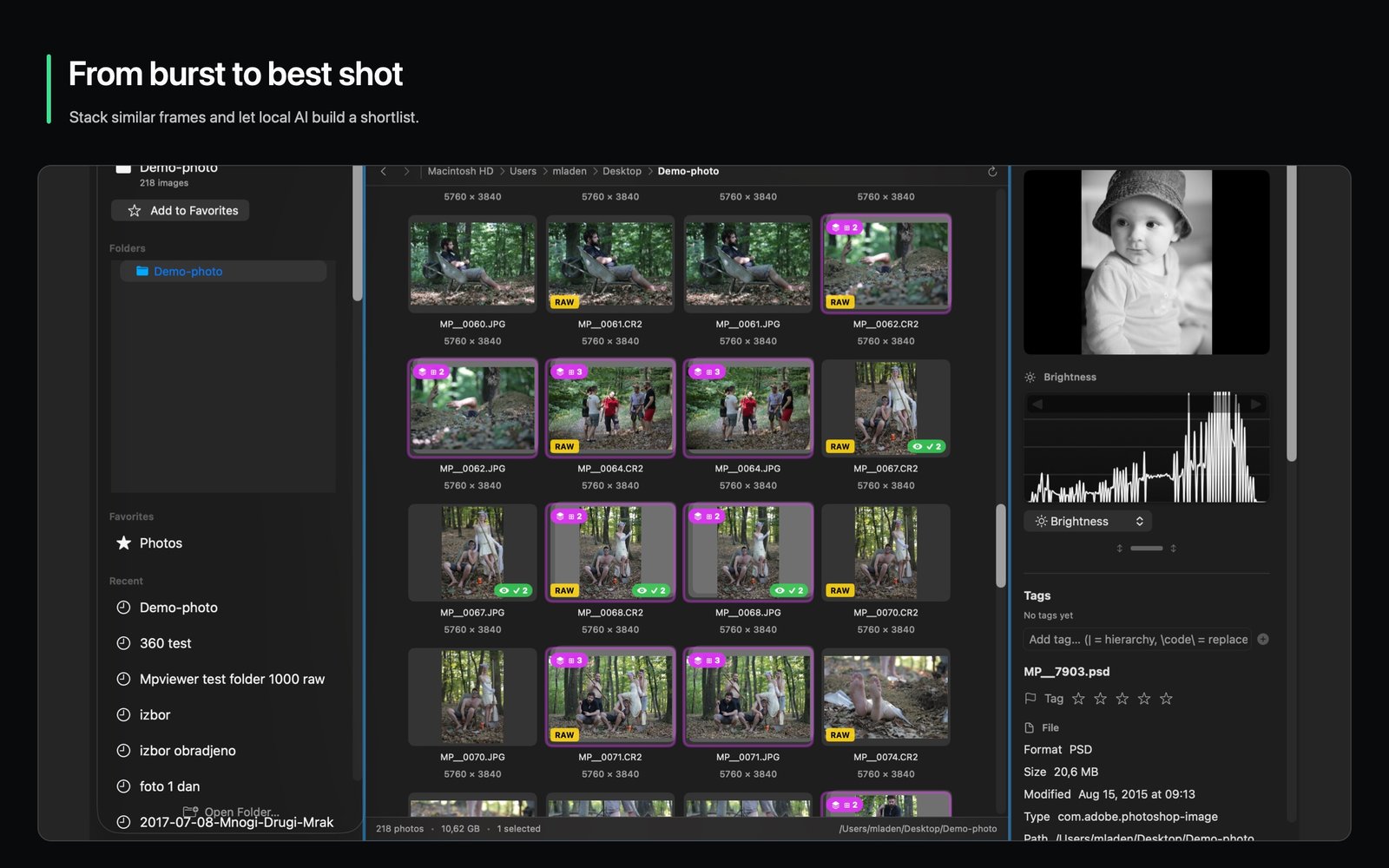
Version 1.4 adds private selection assistance, burst stacks and a complete 360° workspace to the same folder-first workflow—without a catalog, account or cloud upload.
- 1Stack a rapid sequence
Group burst frames into one compact item, then hover-scrub or open the stack to inspect every photograph without losing your place.
- 2Ask for a private second look
Run optional Best Shot and Blink Analysis on the selected frames. Analysis stays on your Mac and never uploads the photographs.
- 3Cull with one hand
Use WASD or J/K/O/P for navigation and decisions, with ratings, picks, rejects, color labels and optional auto-advance.
- 4Open a 360° photograph
Explore an equirectangular image interactively, set its initial view, create a Little Planet or add a Nadir Patch before full-resolution export.
You can still choose embedded RAW previews, keep the filename and position visible in fullscreen, and map number keys to zoom or ratings. For every panorama control, continue with the complete 360° guide →.
Keep photos and videos in one sequence.
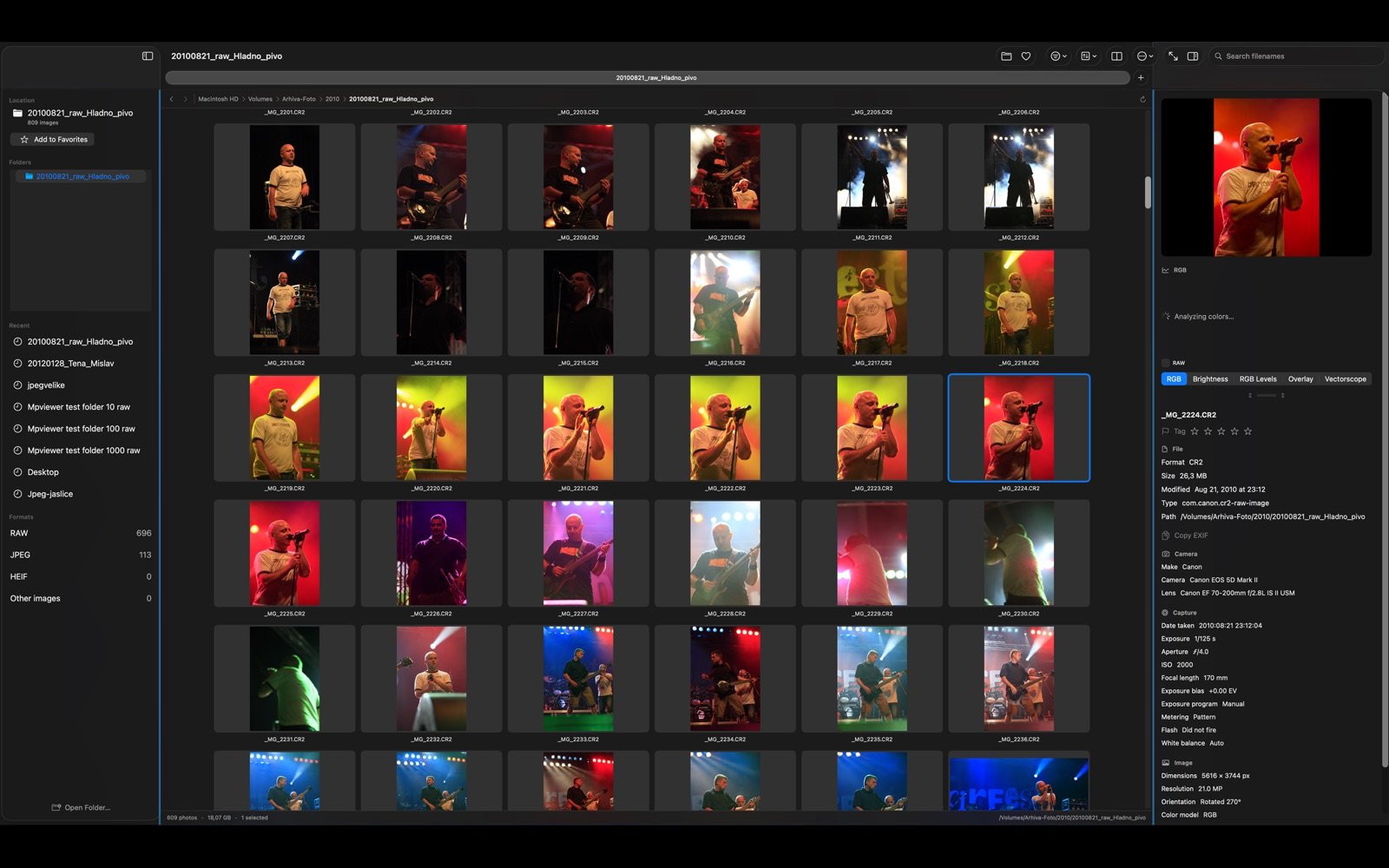
MPViewer can display common camera RAW formats, JPEG, HEIC, TIFF, PNG, GIF, BMP and supported videos together. Search by filename, resize thumbnails, change sorting and combine sidebar filters without leaving the folder.
Navigate
Use the folder tree, clickable path bar, Favorites, Recent folders and Back/Forward history.
Filter
Narrow the folder by format, rating “and above,” tag, camera, lens, date, EXIF-aware orientation, geotagged or edited status. Active filters stay summarized with Clear All.
Select
Use standard Click, Shift-click and Command-click selection for review, operations and export.
Tip: MPViewer keeps matching RAW and JPEG pairs together during supported file operations, which is useful when a camera records both formats.
Open the file you already have in front of you.
Control-click a supported photograph, RAW file or video in Finder and choose Open With → MPViewer. MPViewer opens that file directly in fullscreen and lets you continue through its containing folder.
- 1Use Open With
Choose MPViewer from Finder’s contextual menu for a one-time open.
- 2Continue through the folder
Use the arrow keys to move to neighboring supported files, or press F to return to the gallery.
- 3Make it the default if you want
Open MPViewer Settings and choose the supported image, RAW or video format groups you want MPViewer to handle by default.
Opening additional Finder files reuses the existing MPViewer window instead of starting unnecessary processes or filling memory with duplicate windows. PDF is intentionally excluded from the default-viewer controls.
Inspect the photograph, not the interface.
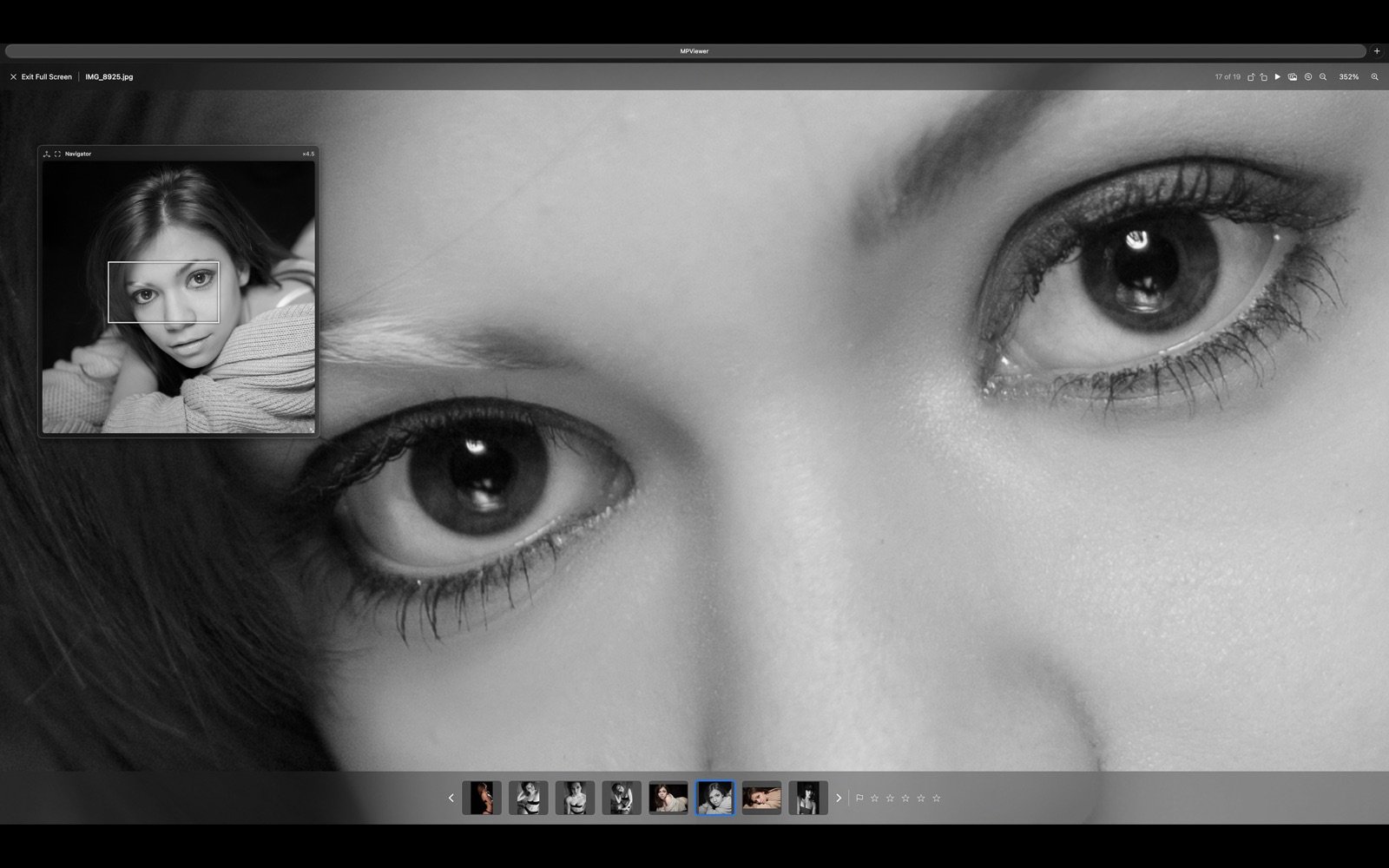
Double-click a photograph or press F, Space, Return or Enter. The fullscreen viewer uses a dark, distraction-free background with a filmstrip, progressive high-resolution loading and controls that stay close when needed.
Video stays in the same workflow
Open MP4, MOV, M4V, AVI and MKV files from the same gallery. The native fullscreen player provides seeking, ±10-second jumps, 0.25×–3× speed, frame stepping, zoom and pan, playback resume, technical information, matching SRT subtitles and video screenshots. Playback depends on codecs available in macOS.
Turn a fast pass into a confident selection.
Move the pointer to the right edge in fullscreen to reveal detailed EXIF and file metadata. Use RGB and brightness histograms, RGB levels, overlay and vectorscope views to evaluate exposure and color. Supported RAW files can also display a linear sensor-data histogram.
Compare similar frames
Select a photograph in the gallery and press C to add or remove it from Comparison. Compare photographs side by side with synchronized zoom and movement. Arrow, plus/minus and numeric zoom controls work directly in Comparison view.
A useful sequence: make a fast rating pass, filter to your highest-rated files, add the closest candidates to Comparison, then check focus at 100% before exporting.
Make useful changes without touching the original.
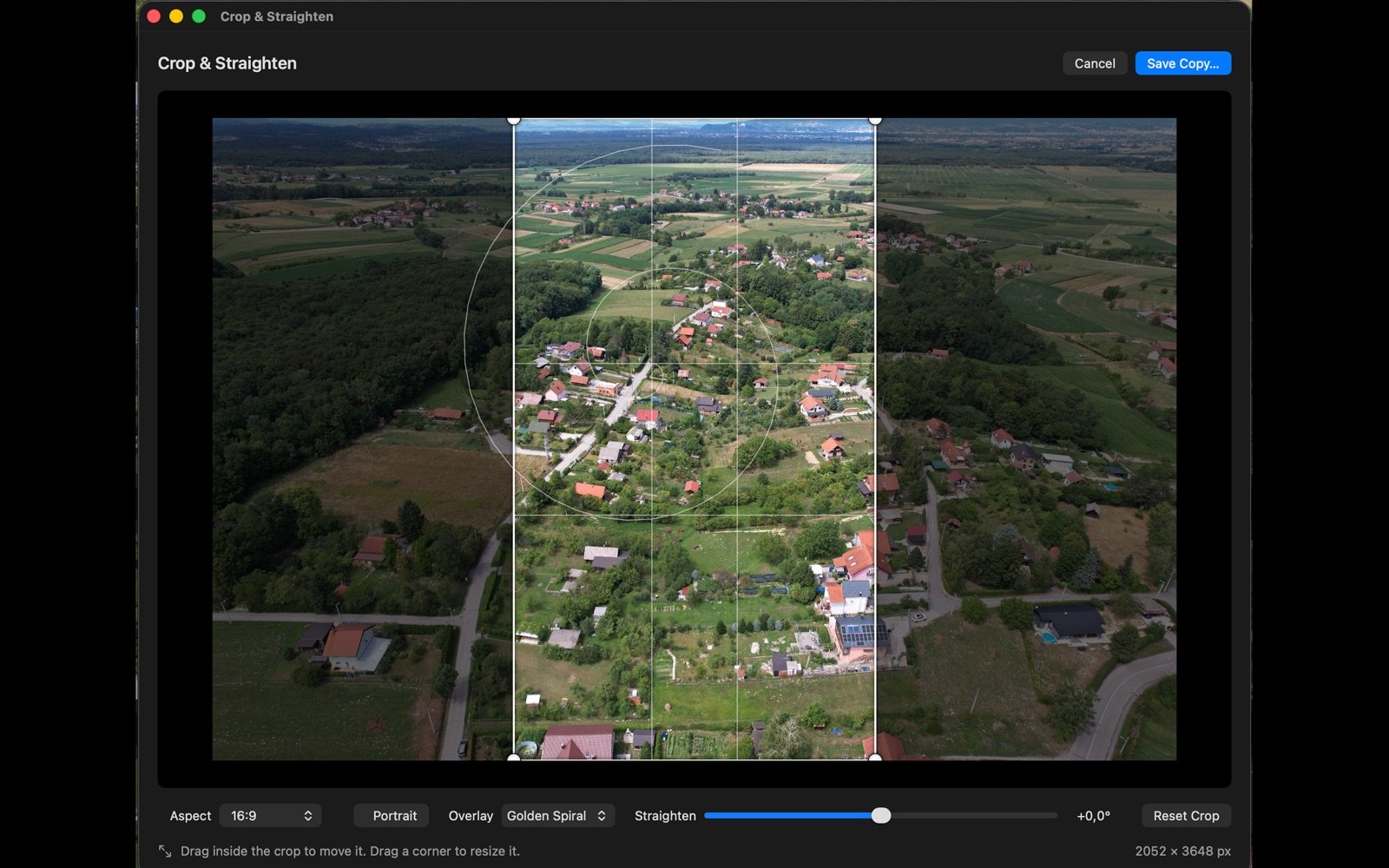
MPViewer separates Adjustments, Effects and Annotations into dedicated tabs. Use Adjustments for light, color, white balance, tone, detail and vignette; Effects for color or black-and-white looks; and the pencil button to jump directly to Annotations.
Adjustments, crop and annotations are stored in XMP sidecar files and restored automatically when you return. The original photograph remains unchanged, while the gallery can show the edited appearance.
Annotations
Add shapes, drawing and labels for feedback or reference. Selected annotations are rendered into an exported copy.
XMP sidecars
Portable sidecar files preserve MPViewer’s non-destructive state without rewriting the camera original.
Create the copy you need.
Use Quick Export for one photograph or Pro Export Studio for repeatable delivery. Export to JPEG, PNG, HEIC, TIFF, WebP, JPEG XL, AVIF or OpenEXR; create multiple sizes; control color and sharpening; add a watermark or lower third; and optionally remove sensitive GPS and camera metadata.
High-quality Apple Core Image resampling for photographs.
Prioritizes smooth gradients and photographic transitions.
Trades some quality for faster resizing.
Preserves distinct pixels for pixel art and technical graphics.
Choose an existing destination folder or create a new destination subfolder directly from Quick Export or Batch Export. Batch presets remember repeatable output settings for future jobs.
If you keep the original pixel dimensions, MPViewer does not perform resampling. PPI metadata does not create extra pixels unless a pixel-size change is also requested.
Handle the supporting work without leaving the folder.
File operations
Copy, move, reveal in Finder or move selected files to the macOS Trash.
Metadata
Edit IPTC/XMP with templates, correct capture time and synchronize GPS from GPX tracks.
Find & present
Find similar or duplicate photographs, view a Geotag Map, print or create contact-sheet PDFs.
Import complete folders or individually selected photographs from memory cards, external drives, local storage, NAS devices and network shares. Choose primary and optional backup destinations, organize by date, filter file types, apply metadata, skip existing files and verify copies by size or SHA-256. A failed optional backup copy rolls back that file’s primary copy instead of leaving a partial result.
Safer rename: Batch Rename is transactional. If a staging or destination step fails, the operation rolls back; edit and metadata XMP sidecars follow the new base filename.
Catalog-free does not mean starting from zero.
MPViewer maintains a persistent thumbnail cache so returning to a working folder is faster. The cache uses stable file identity and modification information, allowing cached thumbnails to survive ordinary file or folder renames on the same volume. Settings now reports the cache’s size and file count and can clear it safely.
MPViewer contains no advertising, analytics or user tracking, and it requires no account. Every feature is free. Optional one-time tips use Apple’s In-App Purchase system and do not unlock functionality.
When you need a detail, search for it.
The interface and searchable in-app Help explain MPViewer’s tools, controls and keyboard shortcuts in 36 languages.

Open a real folder. Keep your files yours.
MPViewer is free on the Mac App Store for Apple silicon and Intel Macs running macOS 14 Sonoma or newer.