
Enter the sphere from fullscreen.
Open a supported panorama from the gallery. When MPViewer detects GPano metadata or a 2:1 equirectangular image, a globe button appears in the fullscreen top bar.
- 1Open the file
Double-click its thumbnail, or select it and press F, Space or Return.
- 2Choose the globe
Click the globe button to change from the flat “360° 2D” preview to the interactive “360° sphere” view.
- 3Return whenever you want
Use the same control to move back to the flat equirectangular view for conventional inspection.
A standard 2:1 panorama usually works immediately even when its GPano metadata is missing.
Turn the panorama into a world of its own.
Choose Little Planet from the 360° Pro tools. MPViewer switches to a live stereographic projection rendered on the GPU.
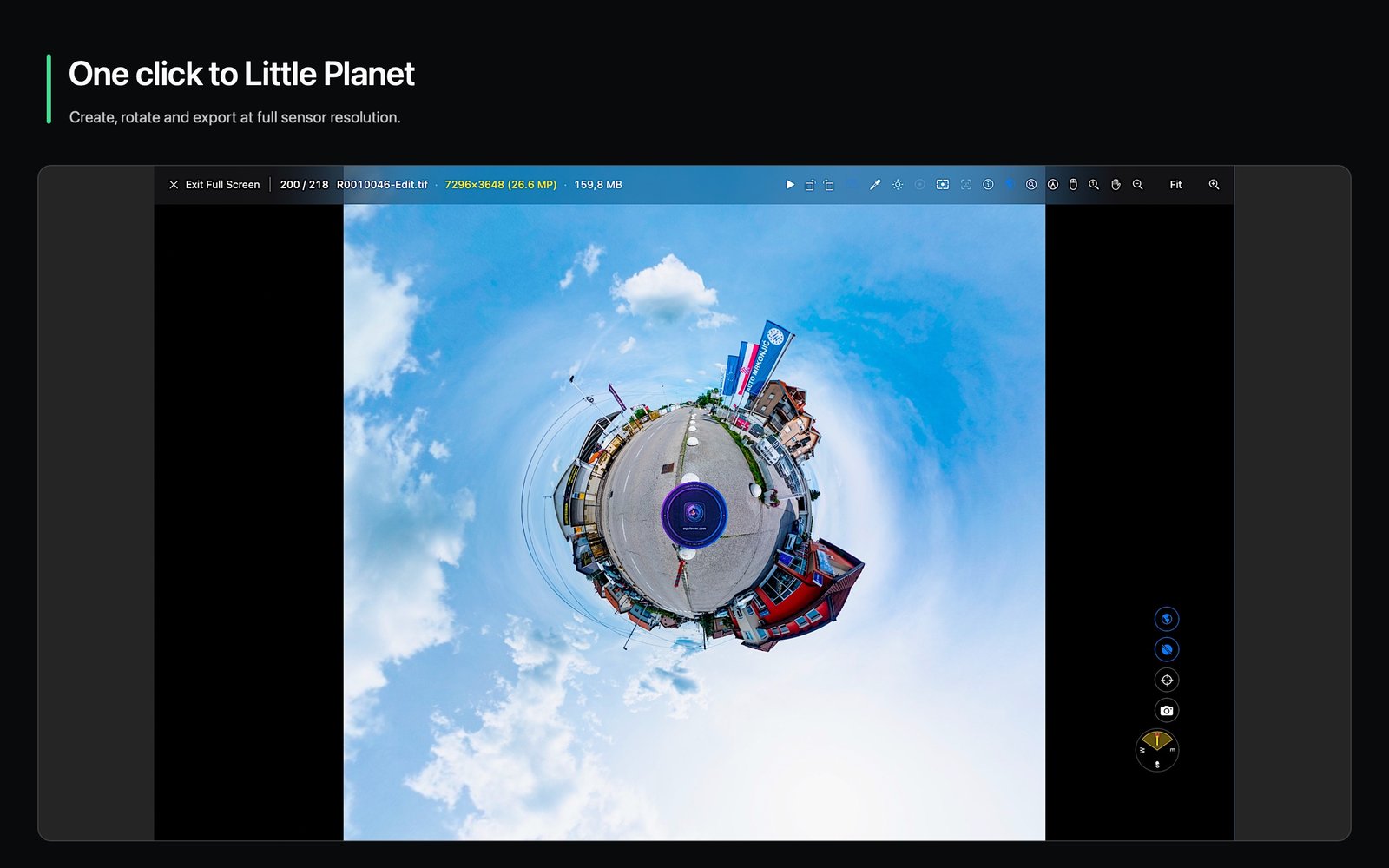
- 1Rotate the planet
Drag horizontally to change yaw and vertically to change pitch, including swapping the Zenith and Nadir orientation.
- 2Set the scale
Scroll until the planet and surrounding sky fill the composition the way you want.
- 3Export the result
Choose the Little Planet export control to render a flat image at the source panorama’s full native resolution.
Hide the tripod in one click.
The Nadir is the point directly beneath the camera, where tripod legs often remain visible. Nadir Patch places a circular cover at that exact point.
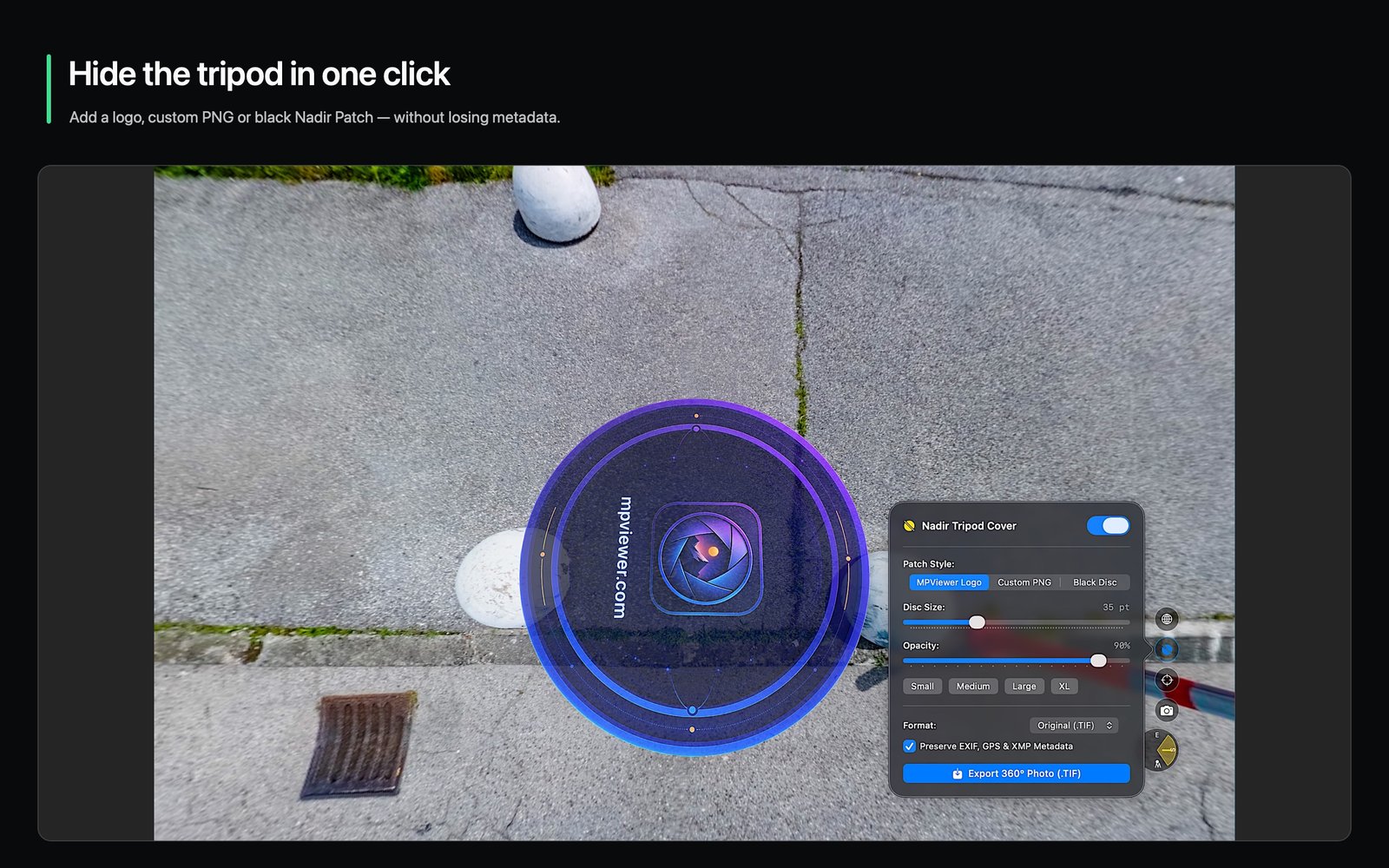
- 1Choose a style
Select the built-in MPViewer logo, a custom PNG or a solid black disc.
- 2Fit the cover
Adjust disc size from 10 to 90 points and opacity from 10% to 100% while watching the result live.
- 3Bake a new panorama
Export a new equirectangular file with the patch included. The original remains untouched.
Your active Nadir Patch is also included in the Little Planet preview and its 2D export.
Choose what viewers see first.
Navigate to the angle that best introduces the scene, then choose Set Initial View from the 360° tools. MPViewer stores the current heading and pitch in the photograph’s XMP metadata.
Non-destructive: The viewing direction is metadata. MPViewer does not rotate or resample the panorama pixels.
Save the view as a conventional photograph.
Position the sphere, choose the camera-shaped 2D Snapshot control and MPViewer saves a flat 4K image of the current perspective beside the source file.
Frame
Drag and zoom until the view reads like a normal photograph.
Capture
Choose 2D Snapshot to render the visible perspective at 4K resolution.
Continue
Review, compare or export the resulting flat image like any other photograph.
Your 360° video belongs here too.
MPViewer places supported equirectangular video on the same interactive sphere and keeps a complete playback bar within reach. Supported detection includes Insta360 .insv files.
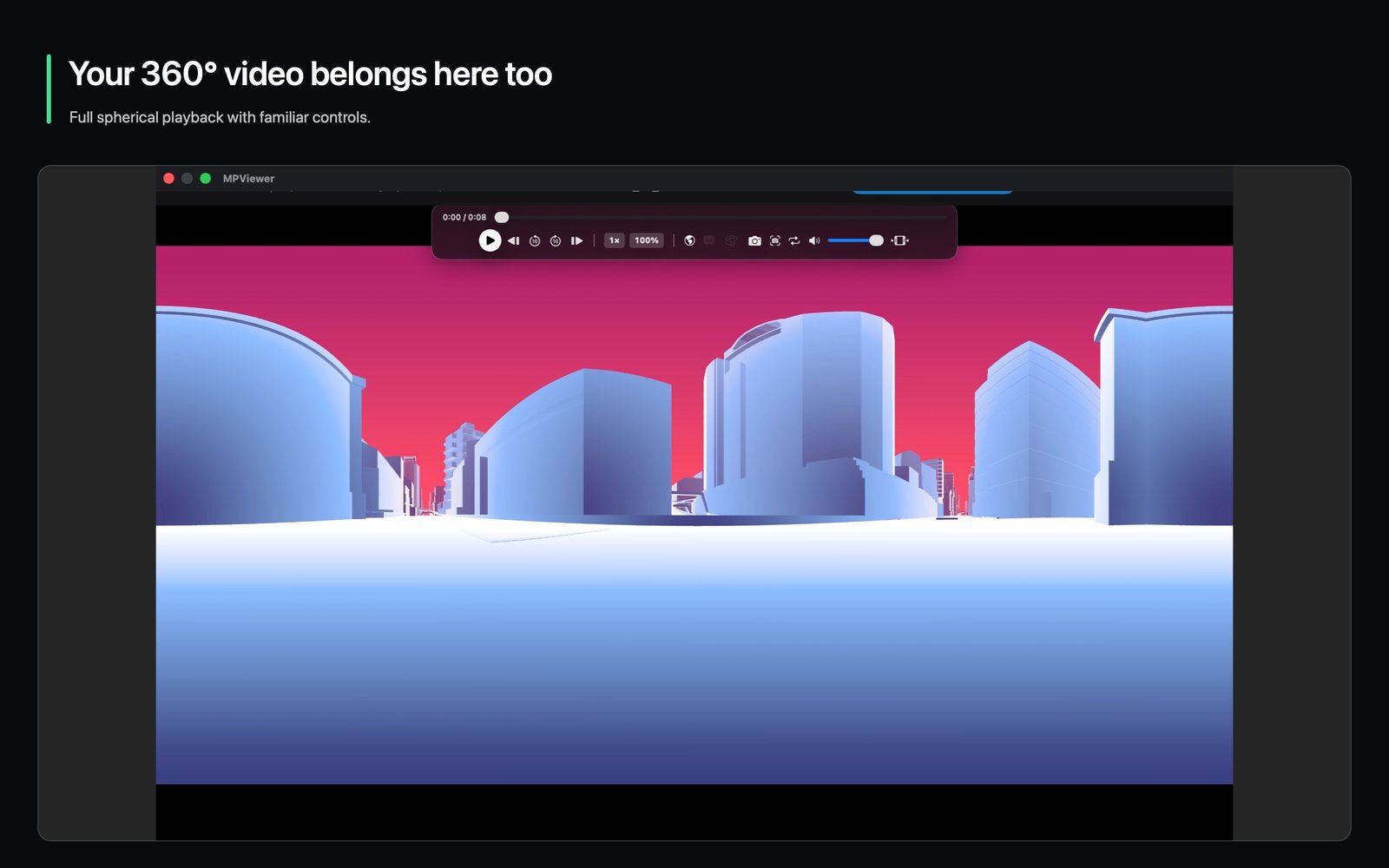
The floating controls also provide a timeline, volume adjustment and auto-hide behavior so the interface moves out of the way while the video plays.
Finish without flattening your workflow.
Quick Adjust updates the 360° sphere and Little Planet preview live. When you are ready, choose the output that matches the job.
Panorama export can retain the original JPEG, TIFF, PNG, HEIC or WebP format when supported, or convert to another available format with quality control. Supported EXIF, GPS, IPTC, MakerNote and GPano metadata are preserved.
Build multi-room virtual tours on Mac.
MPViewer 1.5 introduces Tour Studio, turning your library of equirectangular panoramas into complete, interconnected virtual walkthroughs without cloud subscriptions or monthly hosting fees.
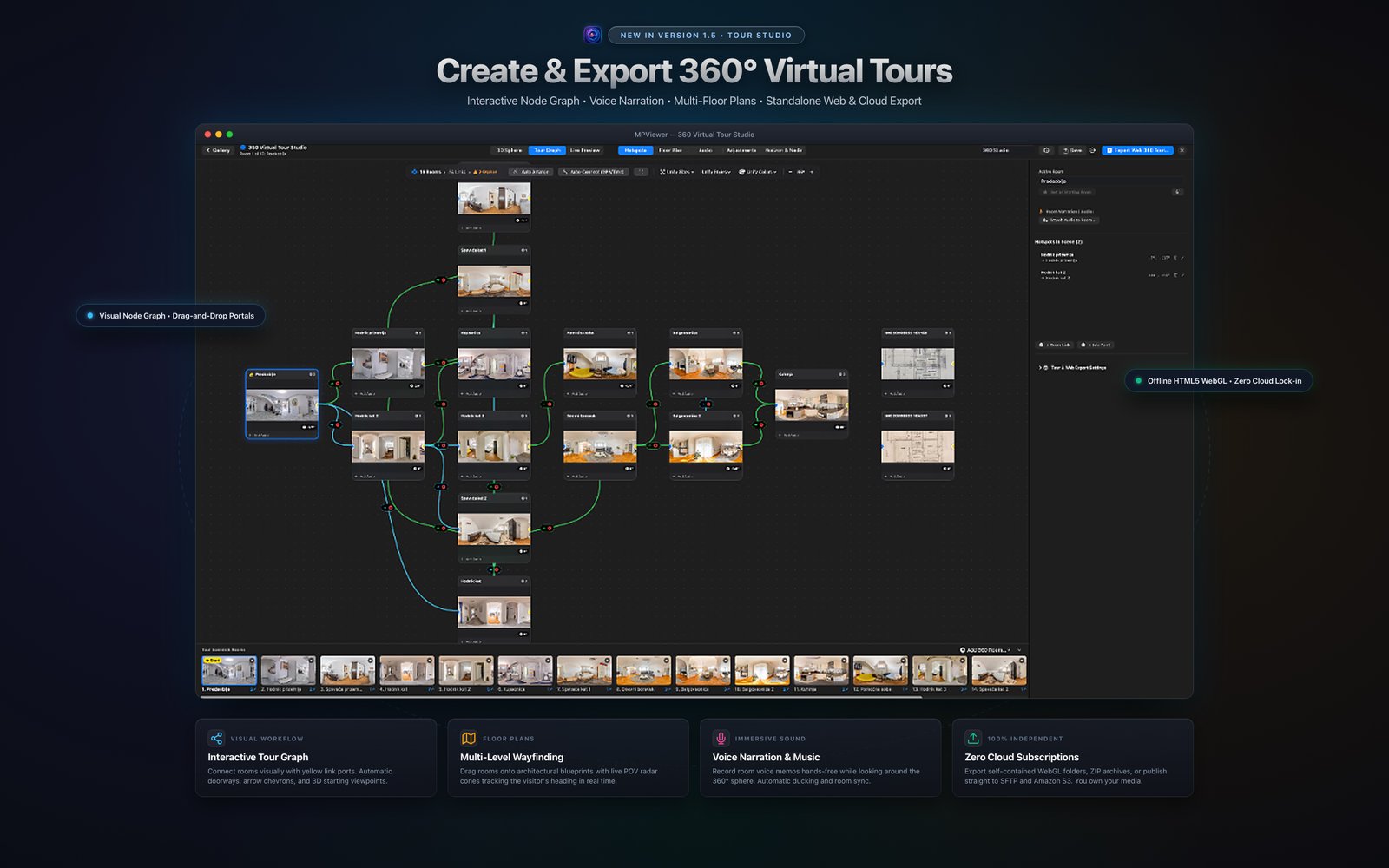
- 1Visual Node Graph
Drag 360° panoramas onto the infinite canvas. Drag yellow connection ports between rooms to create bidirectional doorway portals and navigation arrows automatically.
- 2Floor Plan & Radar Wayfinding
Import architectural floor plans for multi-story buildings. Drop room pins onto the blueprint—a live field-of-view radar cone tracks the visitor’s exact heading and zoom.
- 3Voice Narration & Soundtracks
Record room voice memos hands-free while looking around the sphere. Set background music with automatic speech ducking and spatial volume control.
- 4Export & Publish Anywhere
Export self-contained WebGL folders that work offline or upload straight to your own SFTP server or Amazon S3 bucket. No monthly fees, no accounts, and zero cloud lock-in.
Test a real tour generated by MPViewer 1.5 Tour Studio directly in your browser: Open 360° Tour Demo (New Tab) ↗
When the sphere does not look right.
The globe button is missing
Confirm that the photo is a stitched 2:1 equirectangular image or contains GPano PhotoSphere metadata.
The image has two circles or a broken seam
You are probably viewing unstitched dual-fisheye RAW. Develop and stitch the DNG first, then open the resulting TIFF or JPEG.
The tripod is still visible
Open the Nadir preset, increase the patch size and use full opacity—or choose a custom PNG designed for the floor area.
The starting angle is wrong
Frame the desired view and run Set Initial View again. The updated heading and pitch are saved to XMP.
Open a panorama. Step inside.
MPViewer 1.5 brings Tour Studio, virtual tours and private photo tools to Apple silicon and Intel Macs running macOS 14 or later.